
To import several orders into Paazl at once you can use the CSV import functionality. In this CSV file you should include the orders and all the necessary information and it has to be a .csv file delimited by a 'Comma' (,).
Note
The header rows should not be deleted before importing.
To generate your own CSV template, you can use the CSV export functionality. In the Paazl web app, follow the steps below.
Select date range
1. Clicking on "Select date range" will open a window.
2. Select a range of days.
3. Apply the selected range.
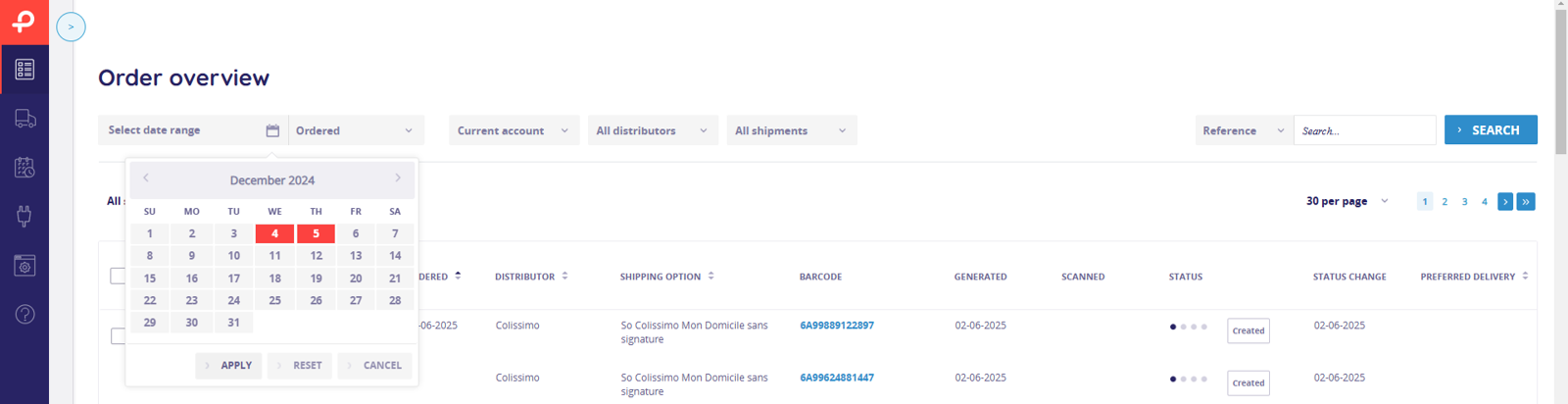
Now you can use the CSV Export function in the lower bar.

Edit your CSV file
So that you are able to open the CSV in the correct format, there is an easy way to adjust the CSV file via the following steps:
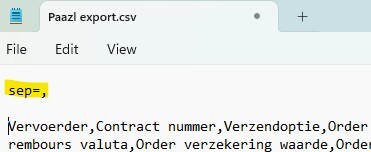
1. Right-click on the document and select "Edit with Notepad."
2. At the beginning of the document, add the text sep=, and save the file (CTRL+S).
3. Close Notepad.
4. Open the file in Excel.
5. You can now add new rows with the necessary information for the orders you want.
Note
One important thing to keep in mind is that Windows 10 may export the CSV file with semicolons (;) as delimiters instead of the required commas (,). You can check this by opening the CSV file in Notepad.
This is how it should look:

If it is a semicolon, you can replace the text with sep=;.
Adjust Excel settings for CSV export
In case you need to use this function more often, we recommend adjusting the settings in Excel. Follow these steps:
1. Open Excel.
2. Go to File > Options > Advanced.
3. Deactivate the checkbox at "Use system separators".
4. Set the Decimal separator to a period (.) and the Thousands separator to a comma (,).
5. Restart your computer.
6. Open the document in Excel.
7. You can now add new rows with the necessary information for the orders you want.
Save CSV file from Excel
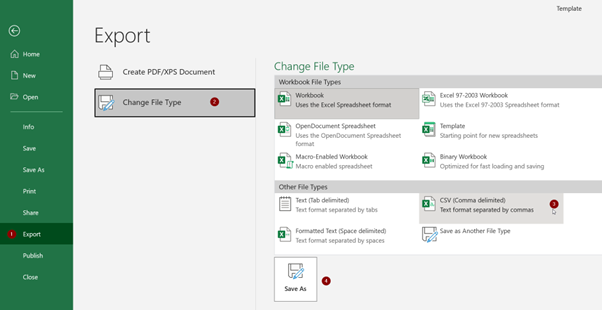
The CSV import requires the file to be in CSV format. To export from Excel to CSV, follow these steps:
1. Go to File in the upper left corner.
2. Click on Export.
3. Select 'Change file type'.
4. Select the 'CSV (Comma delimited)' file type.
5. Save as.
Once the CSV file is complete, you can import it through the web app.
Was this article helpful?
That’s Great!
Thank you for your feedback
Sorry! We couldn't be helpful
Thank you for your feedback
Feedback sent
We appreciate your effort and will try to fix the article