
This article explains how to create, edit and delete addresses in the Paazl web app.
Paazl has two types of address book:
- Webshop address book: sender and return address
- Order address book: customer addresses
The two types of address books are explained below.
Webshop address book
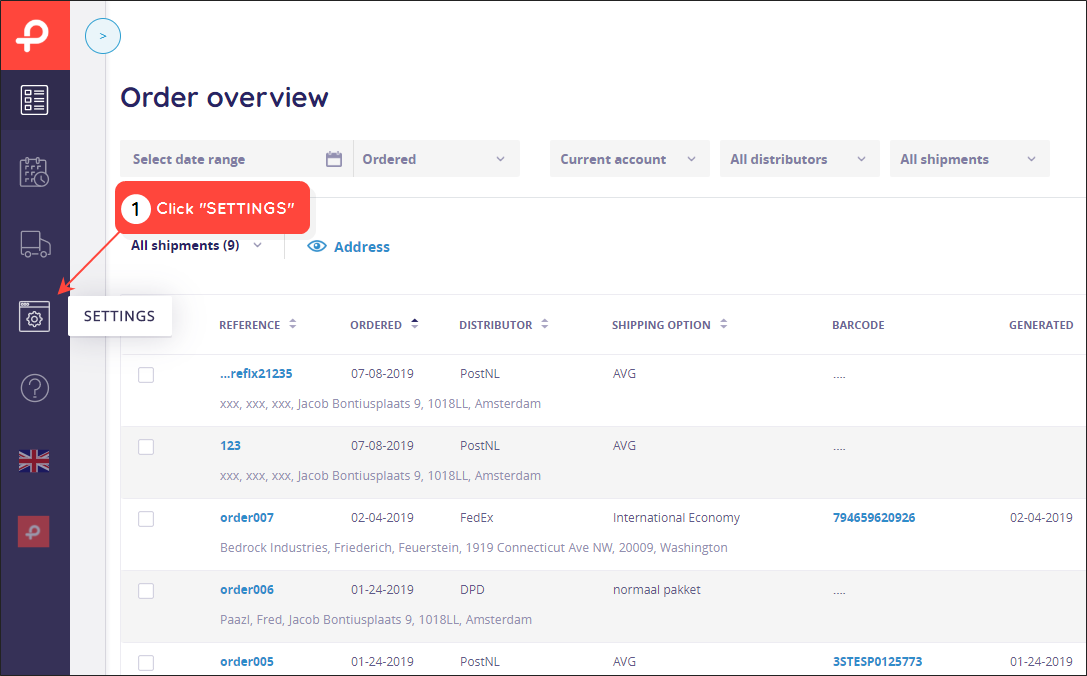
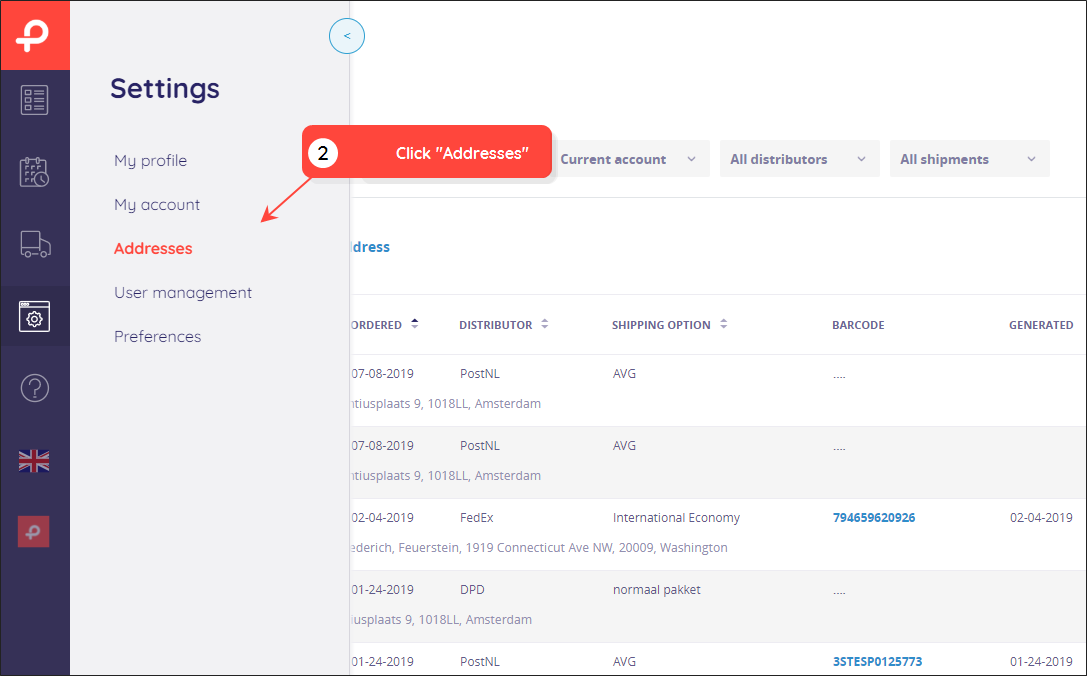
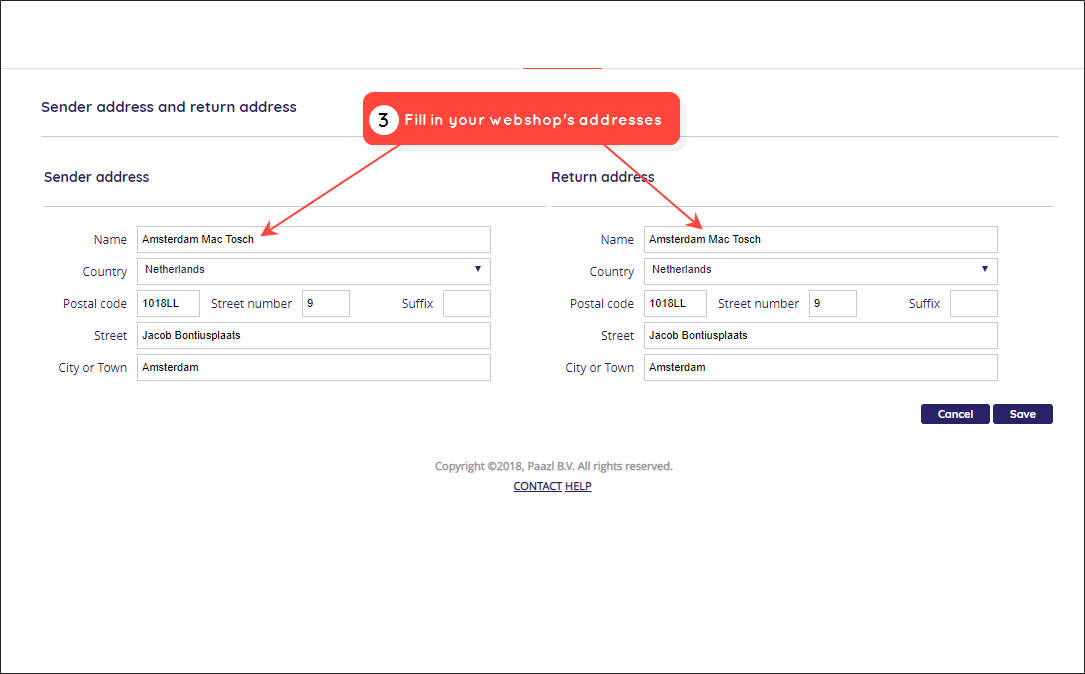
To specify the addresses from which your webshop ships orders and to which it receives returns, log into your Paazl web app account and follow the steps below.
Order address book
Adding addresses
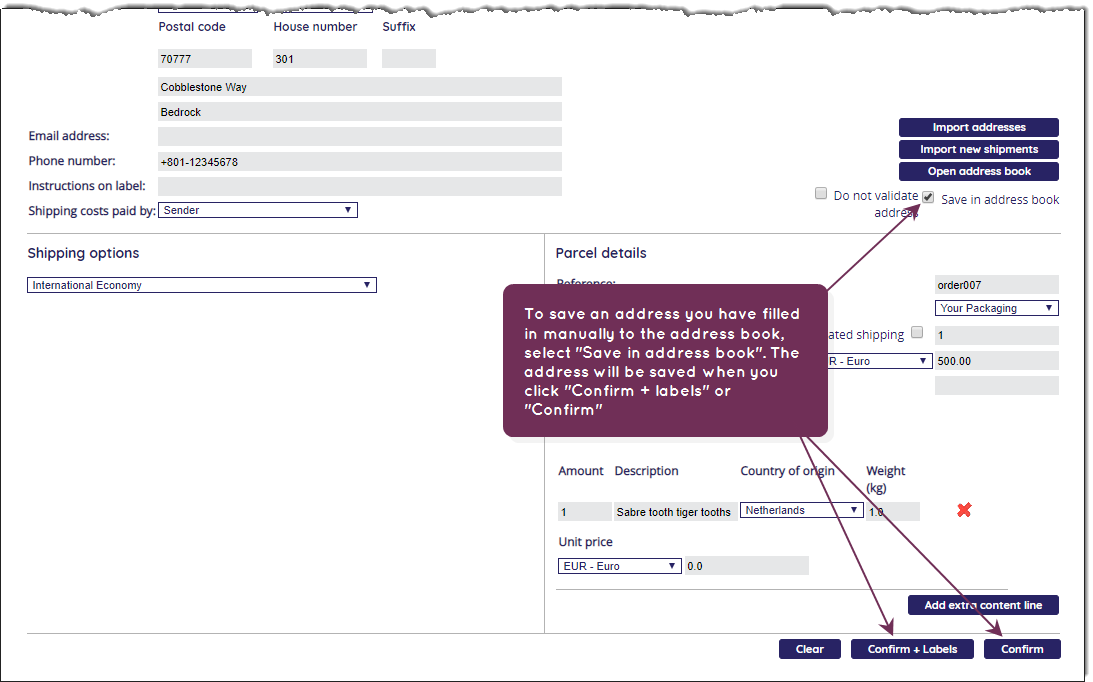
The screenshot below shows how to ensure an order's address is saved to the address book when you confirm the order by saving it.
Importing addresses
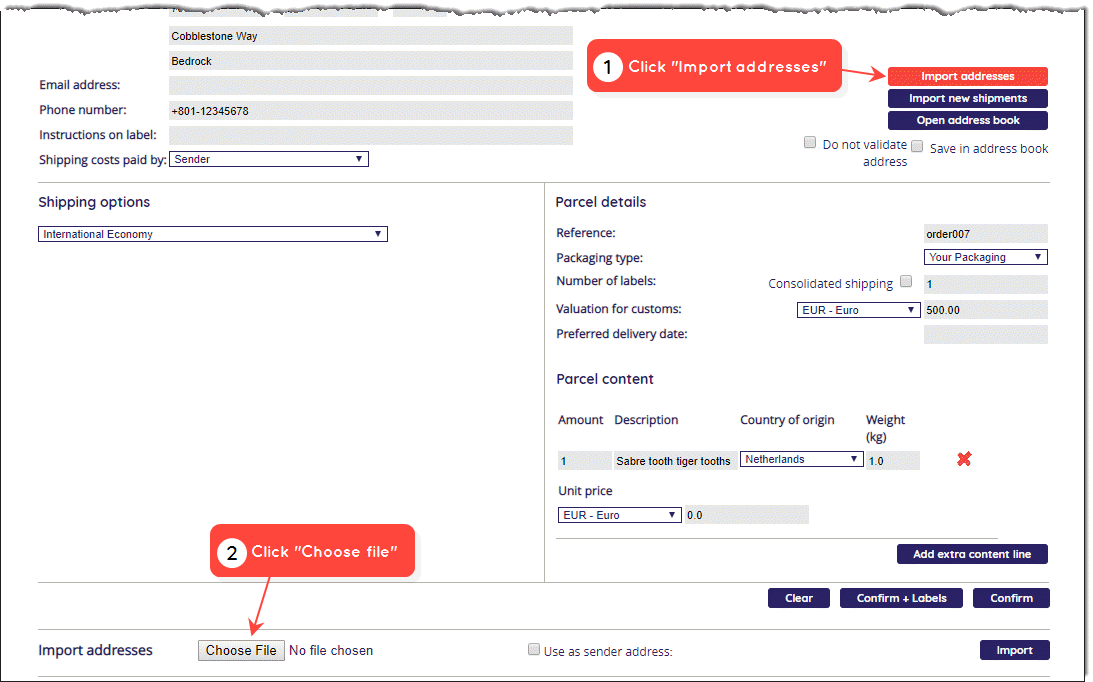
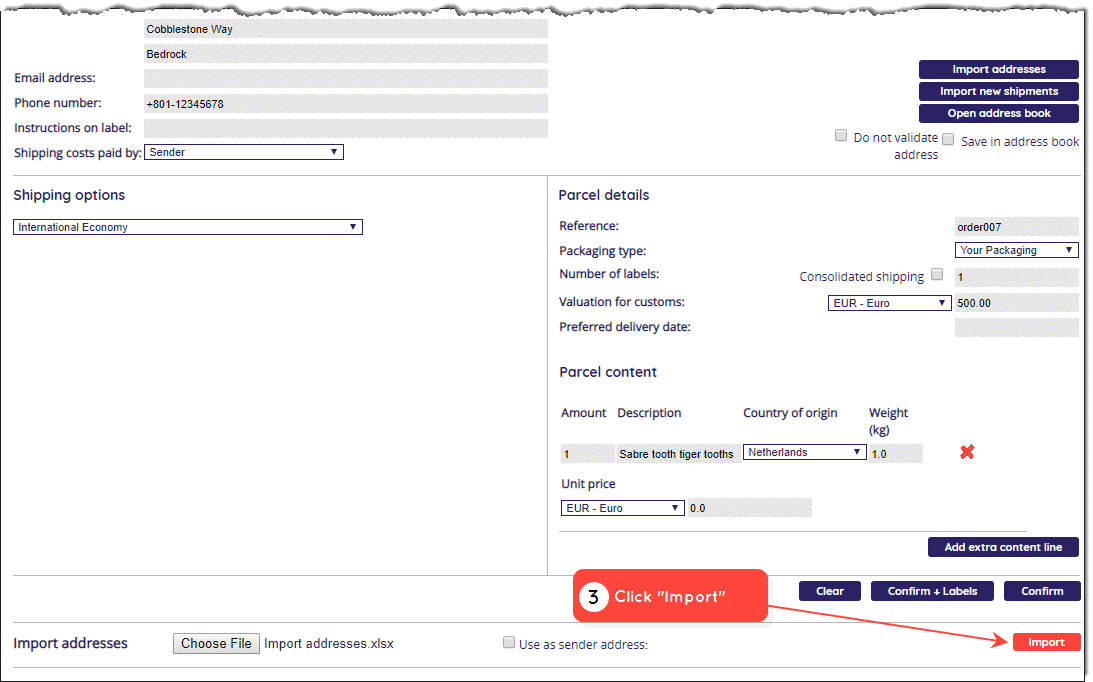
To import addresses you need to include the addresses in the Import addresses.xls file and then upload the file to Paazl.
Note
Make sure you remove any header rows and unnecessary worksheets from your Excel file before uploading it! The file must only contain address data.
Fill in the addresses in the file as follows.
| Excel Column | Paazl field | Required/Optional | Example |
|---|---|---|---|
| A | Company name | Optional | Bedrock Industries |
| B | Name | Optional | Friederich Feuerstein |
| C | Other | Optional | Logistics Department |
| D | Postal code | Required | 70777 |
| E | House number | Required | 301 |
| F | Suffix | Optional | b |
| G | Street | Optional | Cobblestone Way |
| H | City | Optional | Bedrock |
| I | Country (ISO 3166-2 code; default is "NL") | Optional | US |
| J | Province | Optional | CA |
| K | e-Mail address | Optional | fred@bi.com |
Note
- The workbook must have the .xls file extension and not the .xlsx file extension
- You can import a maximum of 1,000 addresses per sheet
- Make sure to put house numbers and house number extensions into separate columns
- The default country code is NL
- When importing Dutch addresses, only fill in the postal code and house number—the house number extension is optional. Paazl automatically fills in the street address and city name
- Use the standard province codes for your country
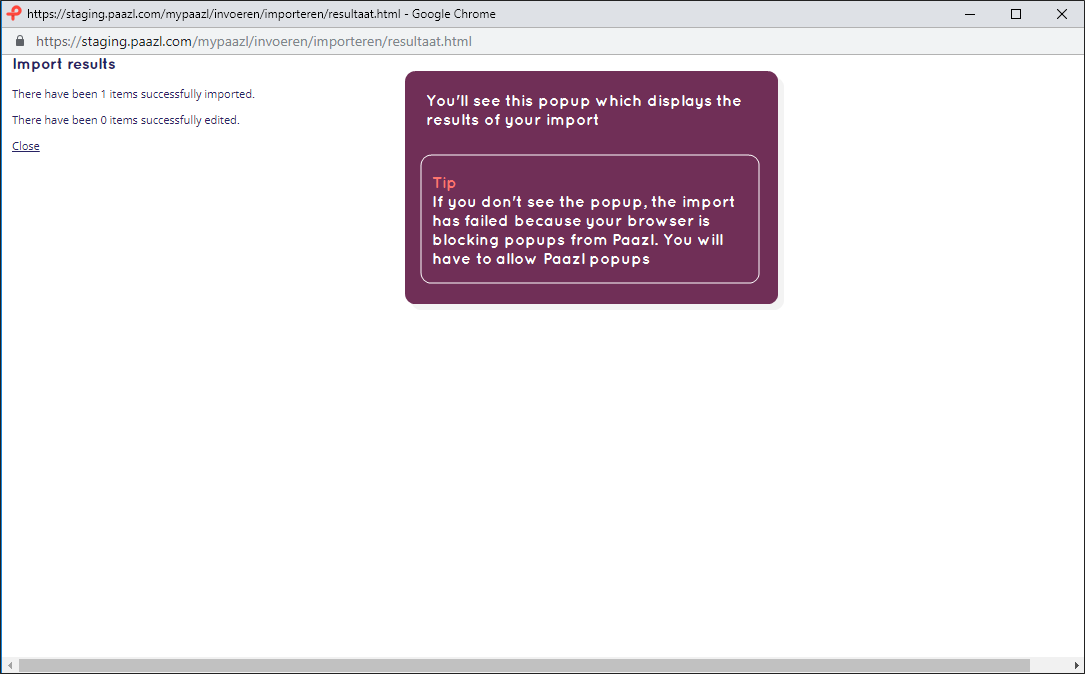
- Make sure your browser doesn't block Paazl pop-ups, otherwise you won't be able to upload the file!
Once your file is ready, follow the steps below.
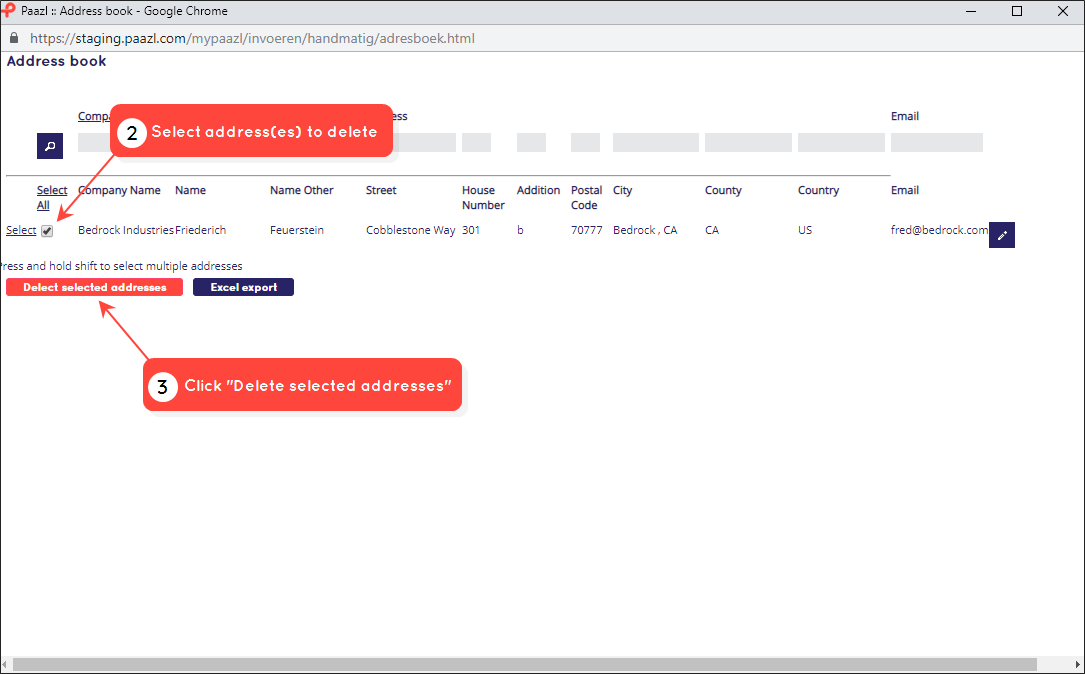
Deleting addresses
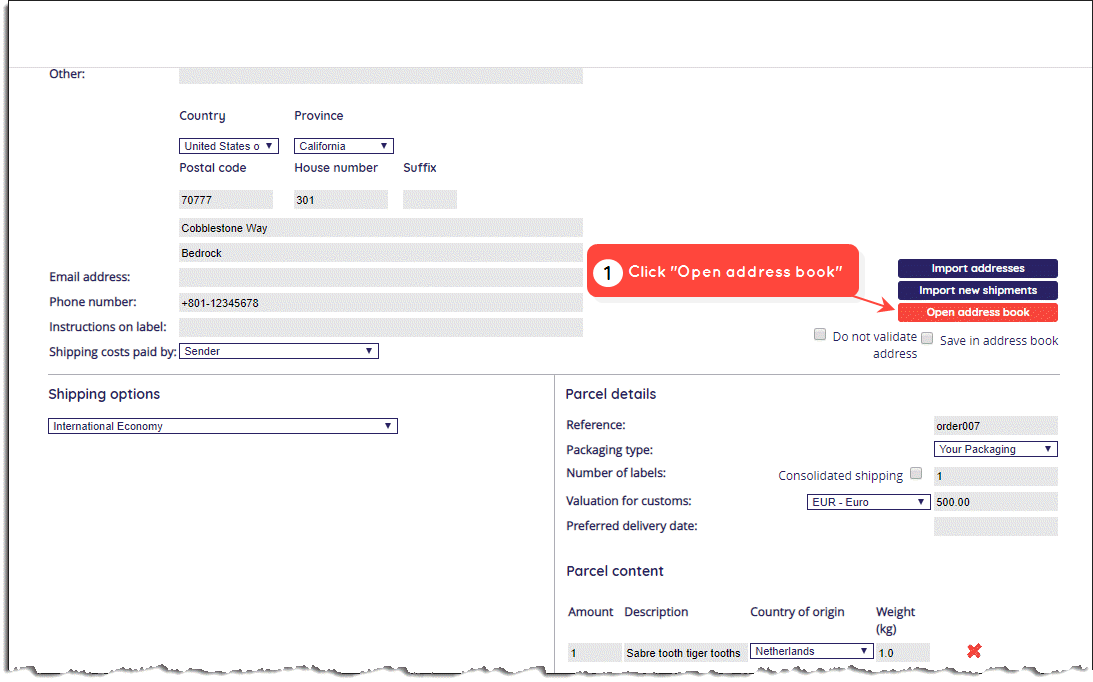
To delete an address from your address book, follow the steps below.
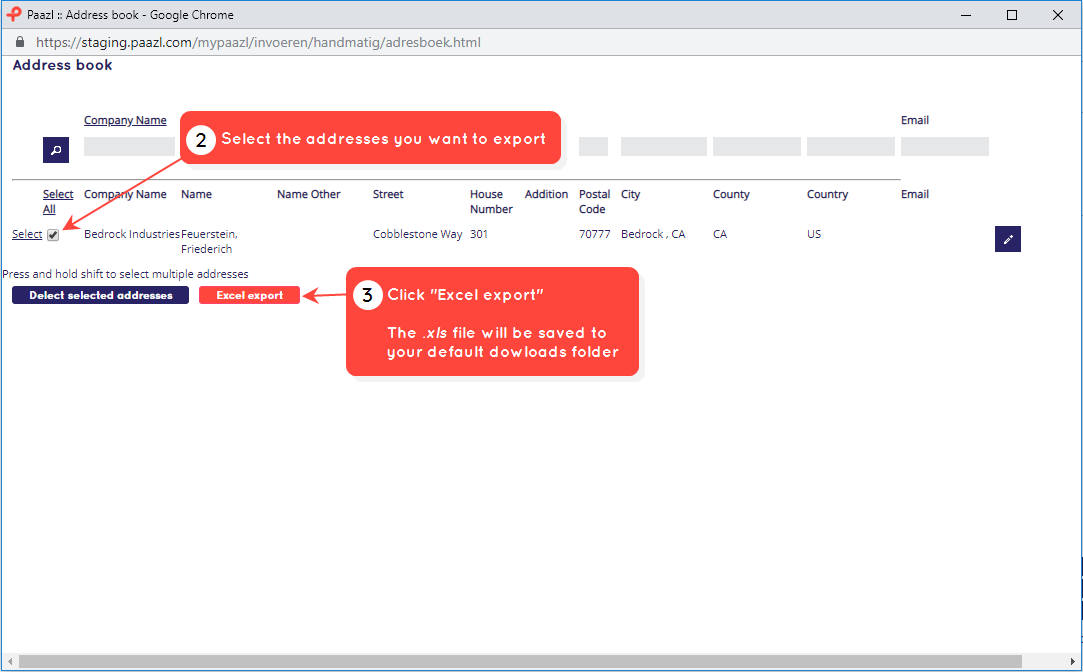
Exporting addresses
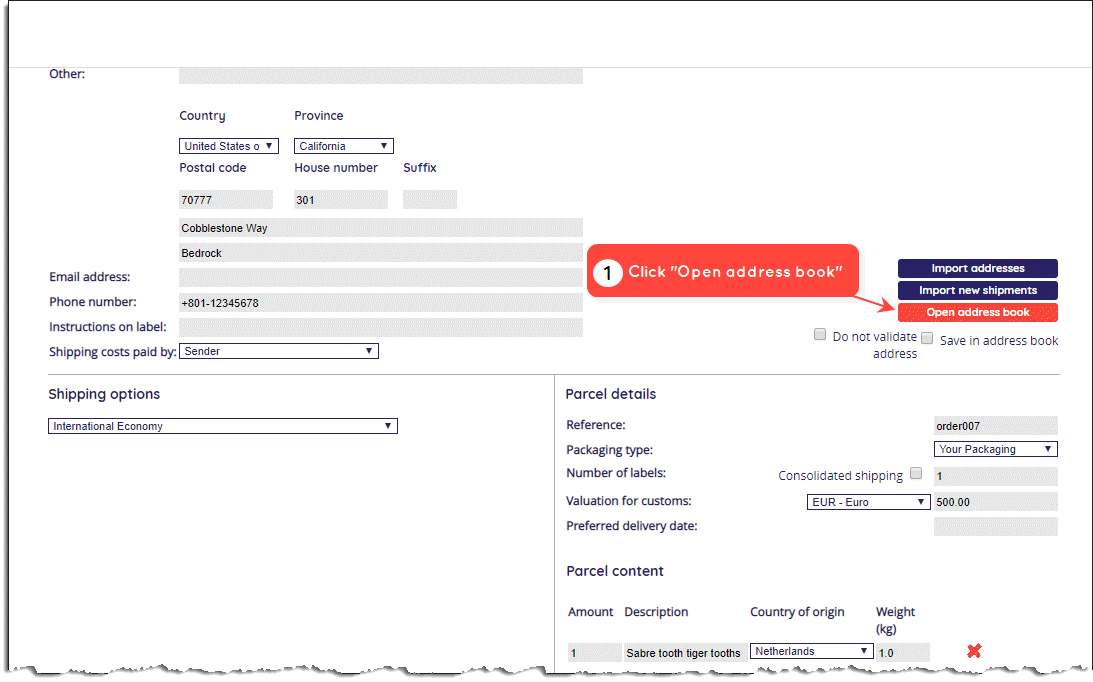
To export your address book as an .xls file, follow the steps below.
Was this article helpful?
That’s Great!
Thank you for your feedback
Sorry! We couldn't be helpful
Thank you for your feedback
Feedback sent
We appreciate your effort and will try to fix the article