
This article explains how to configure Paazl to print labels and send Track & Trace emails for returns. To use this functionality, your webshop must have at least one shipping option set up for returns. If you do not have this set up, please contact Paazl Customer Support.
Where to find the "Returns" Page
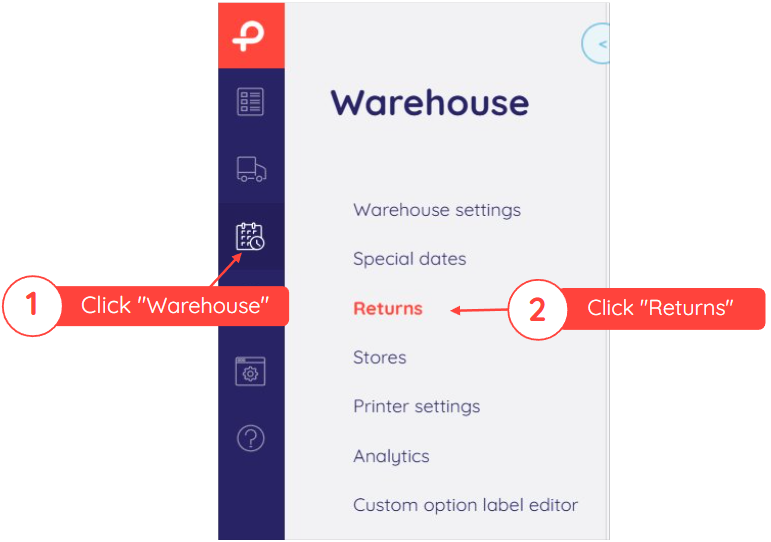
Default Settings
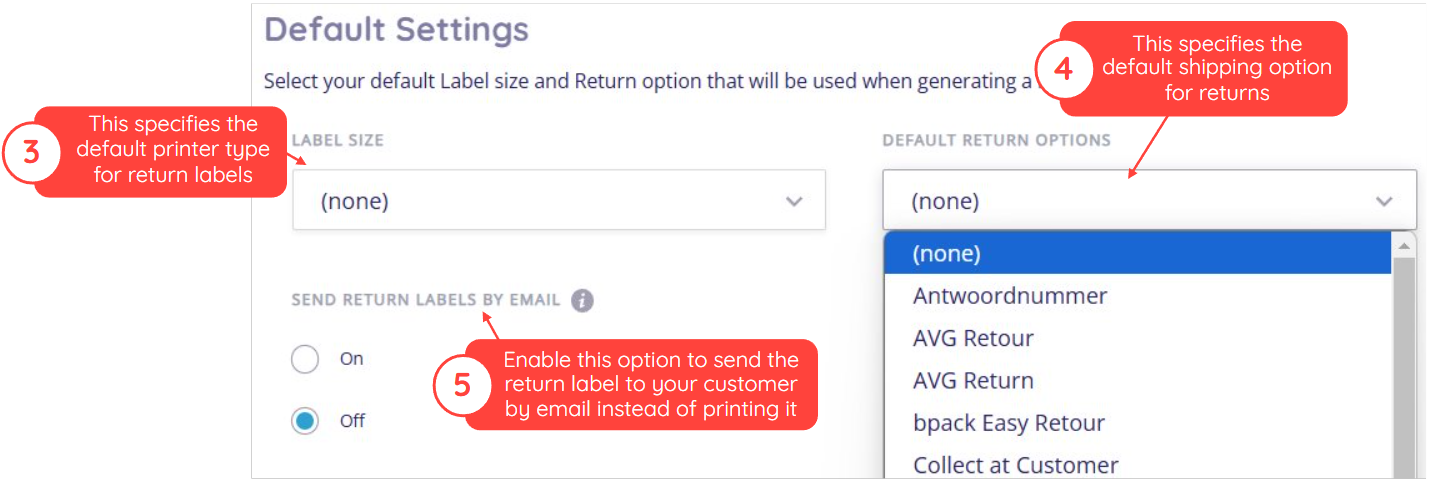
Note
If you leave the printer type as "(none)", a menu of shipping options will appear when you try to print through the Paazl web app. If you want to print with the generatePdfLabels SOAP API request, you will need to specify the return shipping option in the request.
Keeping your customer notified
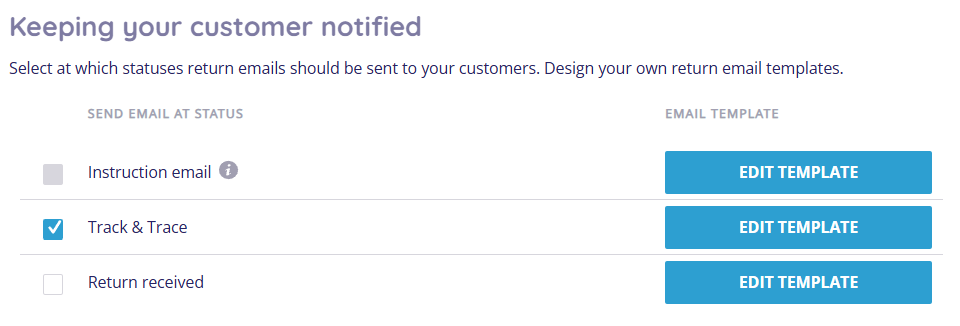
If you check the "Track and trace email" checkbox, Paazl will send an email to customers as soon as their return shipment is first scanned by the carrier concerned. The email will include a Track & Trace link so that your customer can monitor the progress of the return shipment.
Click "Edit template" to edit the email's layout and content. Customizing email notification explains how to edit these templates.
Auto-print return labels
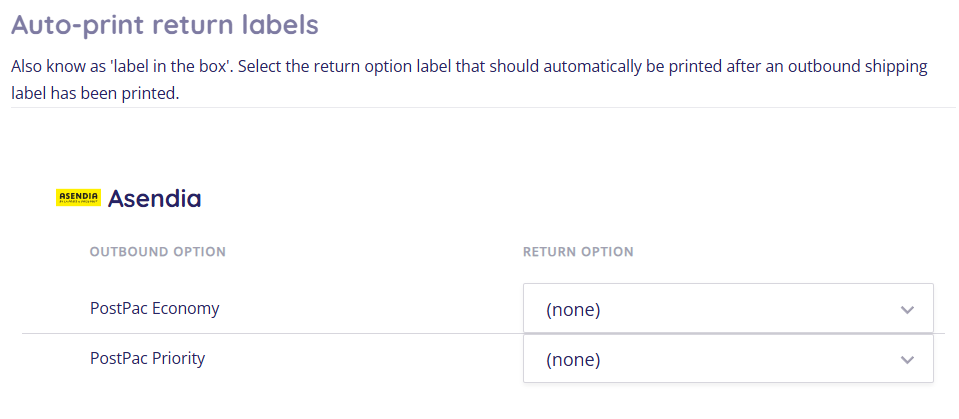
Select the shipping options for which you want a return label to be printed automatically whenever a shipping label is printed. If the drop-down menu does not show a return shipping option, contact Paazl Customer Support.
Note
These settings apply whether you print labels using Paazl Scan & Print, the generatePdfLabels SOAP API request, or when printing labels while manually creating or editing a shipment.
Was this article helpful?
That’s Great!
Thank you for your feedback
Sorry! We couldn't be helpful
Thank you for your feedback
Feedback sent
We appreciate your effort and will try to fix the article